Getting Started: Building Your First Blog with Next.js and Markdown

Introduction

In this tutorial, we will walk through the process of building a blog using Next.js and Markdown. Next.js is a popular React framework that provides server-side rendering, automatic code splitting, and other powerful features. Markdown is a lightweight markup language used for creating formatted text documents. By combining Next.js and Markdown, we can create a fast and dynamic blog with a seamless writing experience. Let’s get started!

Prerequisites: Before we begin, make sure you have the following prerequisites:

  • Basic knowledge of React and Next.js
  • Node.js installed on your machine
  • Familiarity with HTML and CSS

Step 1: Setting Up a Next.js Project To get started, let’s create a new Next.js project. Open your terminal and run the following commands:

npx create-next-app my-blog
cd my-blog

Step 2: Installing Dependencies Next, let’s install the required dependencies for our blog. We need gray-matter to parse the Markdown files, and remark and remark-html to convert Markdown to HTML. Run the following command:

npm install gray-matter remark remark-html

Step 3: Creating Markdown Files In the root of your project, create a posts directory. Inside the posts directory, create a new Markdown file with the following content:

markdownCopy code---
title: My First Blog Post
date: 2023-06-01
---

# Welcome to My Blog!

This is my first blog post. Enjoy!

Step 4: Creating the Blog Page In the pages directory, create a new file called blog.js. In this file, let’s create a component that will fetch the Markdown files and render them as blog posts. Add the following code:

import fs from 'fs';
import path from 'path';
import matter from 'gray-matter';
import { remark } from 'remark';
import html from 'remark-html';

export default function Blog({ posts }) {
  return (
    <div>
      <h1>My Blog</h1>
      {posts.map((post) => (
        <div key={post.slug}>
          <h2>{post.frontmatter.title}</h2>
          <p>{post.frontmatter.date}</p>
          <div dangerouslySetInnerHTML={{ __html: post.content }} />
        </div>
      ))}
    </div>
  );
}

export async function getStaticProps() {
  const postsDirectory = path.join(process.cwd(), 'posts');
  const fileNames = fs.readdirSync(postsDirectory);

  const posts = await Promise.all(
    fileNames.map(async (fileName) => {
      const filePath = path.join(postsDirectory, fileName);
      const fileContent = fs.readFileSync(filePath, 'utf8');
      const { data, content } = matter(fileContent);

      const processedContent = await remark().use(html).process(content);
      const contentHtml = processedContent.toString();

      return {
        slug: fileName.replace(/\.md$/, ''),
        frontmatter: {
          ...data,
          date: data.date.toISOString(), // Convert date to string
        },
        content: contentHtml,
      };
    })
  );

  return {
    props: {
      posts,
    },
  };
}

Step 5: Styling the Blog Page Let’s add some basic styles to make our blog page look better. Create a new CSS file called blog.module.css in the styles directory and add the following code:

.container {
  max-width: 600px;
  margin: 0 auto;
  padding: 20px;
}

.post {
  margin-bottom: 20px;
}

.title {
  font-size: 24px;
  font-weight: bold;
}

.date {
  color: #888;
  font-size: 14px;
}

.content {
  margin-top: 10px;
}

Update the Blog component in blog.js to include the CSS classes:

import styles from '../styles/blog.module.css';

// ...

export default function Blog({ posts }) {
  return (
    <div className={styles.container}>
      <h1>My Blog</h1>
      {posts.map((post) => (
        <div key={post.slug} className={styles.post}>
          <h2 className={styles.title}>{post.frontmatter.title}</h2>
          <p className={styles.date}>{post.frontmatter.date}</p>
          <div
            className={styles.content}
            dangerouslySetInnerHTML={{ __html: post.content }}
          />
        </div>
      ))}
    </div>
  );
}

Step 6: Running the Application Finally, let’s run our Next.js application and see our blog in action. Run the following command:

npm run dev

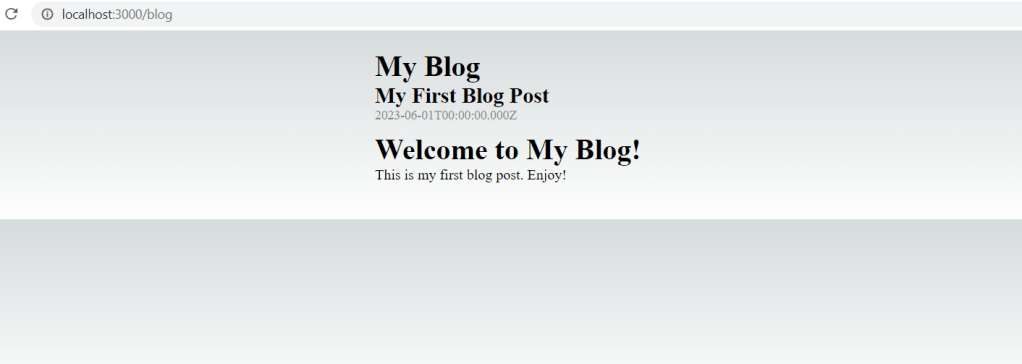
Visit http://localhost:3000/blog in your browser, and you should see your blog with the first post displayed.

Conclusion

In this tutorial, we learned how to build a blog using Next.js and Markdown. We covered the steps to set up a Next.js project, parse Markdown files, and render them as blog posts. We also added basic styling to enhance the appearance of our blog. With this foundation, you can expand the blog functionality by adding features like pagination, category filtering, and commenting. Happy blogging!

I hope this detailed tutorial helps you build a blog using Next.js and Markdown. Feel free to customize and extend the code to suit your specific needs.
Mocking in Next.js with Jest: How to create mocks for API responses and dependencies

Mocking is an essential part of unit testing in Next.js with Jest. It allows us to create a fake version of a dependency or API response and test our code in isolation. In this blog post, we will explore how to create mocks for API responses and dependencies in Next.js with Jest.

What is mocking?

Mocking is the process of creating a fake version of a dependency or API response that our code depends on. By creating a mock, we can test our code in isolation without relying on external dependencies. This allows us to control the behavior of the mocked dependency or API response and test various scenarios.

Why use mocking?

There are several benefits to using mocking in our tests:

  • Isolation: By mocking dependencies and API responses, we can test our code in isolation without relying on external factors.
  • Control: We can control the behavior of the mocked dependency or API response and test various scenarios.
  • Speed: Mocking can make our tests run faster by reducing the need for external calls.

Creating mocks for API responses

When testing Next.js applications that rely on external APIs, we can create mocks for API responses using Jest’s jest.mock() function. This function allows us to replace the original module with a mock module that returns the data we want.

Here’s an example of how to create a mock for an API response in a Next.js application:

// api.js
import axios from 'axios';

export async function getUsers() {
  const response = await axios.get('/api/users');
  return response.data;
}

// __mocks__/axios.js
const mockAxios = jest.genMockFromModule('axios');

mockAxios.get = jest.fn(() => Promise.resolve({ data: [{ id: 1, name: 'John' }] }));

export default mockAxios;

In this example, we have created a mock for the **axios**module that returns a fake response with a single user. The mock is defined in the **__mocks__**directory, which is automatically recognized by Jest.

To use this mock in our test, we can simply call **jest.mock('axios')**at the beginning of our test file:

// api.test.js
import { getUsers } from './api';
import axios from 'axios';

jest.mock('axios');

describe('getUsers', () => {
  it('returns a list of users', async () => {
    axios.get.mockResolvedValue({ data: [{ id: 1, name: 'John' }, { id: 2, name: 'Jane' }] });

    const result = await getUsers();

    expect(result).toEqual([{ id: 1, name: 'John' }, { id: 2, name: 'Jane' }]);
  });
});

In this test, we have mocked the axios.get() method to return a list of two users. We then call the getUsers() function and assert that it returns the correct data.

Creating mocks for dependencies

In addition to mocking API responses, we can also create mocks for dependencies that our code depends on. This can be useful when testing functions that rely on complex or external dependencies.

Here’s an example of how to create a mock for a dependency in a Next.js application:

// utils.js
import moment from 'moment';

export function formatDate(date) {
  return moment(date).format('MMMM Do YYYY, h:mm:ss a');
}

// __mocks__/moment.js
const moment = jest.fn((timestamp) => ({
  format: () => `Mocked date: ${timestamp}`,
}));

export default moment;

In this example, we have created a mock for the moment module that returns a formatted string with the timestamp value. The mock is defined in the __mocks__ directory, which is automatically recognized by Jest.

To use this mock in our test, we can simply call jest.mock('moment') at the beginning of our test file:

// utils.test.js
import { formatDate } from './utils';
import moment from 'moment';

jest.mock('moment');

describe('formatDate', () => {
  it('returns a formatted date string', () => {
    const timestamp = 1617018563137;
    const expected = 'Mocked date: 1617018563137';

    const result = formatDate(timestamp);

    expect(moment).toHaveBeenCalledWith(timestamp);
    expect(result).toEqual(expected);
  });
});

In this test, we have mocked the moment() function to return a formatted string with the timestamp value. We then call the formatDate() function and assert that it returns the correct string.

Conclusion

Mocking is an essential part of unit testing in Next.js with Jest. It allows us to create a fake version of a dependency or API response and test our code in isolation. In this blog post, we explored how to create mocks for API responses and dependencies in Next.js with Jest. We saw how to use jest.mock() to create mocks for external APIs and how to create mocks for dependencies. By using mocking in our tests, we can test our code in isolation, control the behavior of dependencies and API responses, and make our tests run faster.