Steps to install Marvel in Elasticsearch

Marvel 1.3

Marvel is installed as an Elasticsearch plugin. The plugin must be installed on every node in the cluster. By default, the plugin will store data in the same Elasticsearch cluster that it is monitoring.

System requirements

Elasticsearch

Marvel 1.3 is compatible of Elasticsearch 1.0-1.7

Browser

The latest version of Chrome, Firefox or Safari is recommended. Internet Explorer 10 and above are also supported.

CORS

If you are using Sense to access a remote cluster, you will need to configure the cluster to allow CORS requests. See CORS for more details.

To install

We have to install Marvel on all nodes in the cluster to collect data, and the collected data will be stored in the same cluster.

Step 1:

Traverse to Elasticsearch home directory and run following command

bin/plugin -i elasticsearch/marvel/latest

Step 2:

Restart the Elasticsearch node.

Once the plugin is installed in all nodes, we can access the Marvel using the following URL

http://node-name:9200/_plugin/marvel/

node-name can be  Elasticsearch node name or IP address.


Marvel 2.0+

To use Marvel 2.0, we need to install two components:

  • An Elasticsearch plugin that collects data from each node in our cluster which will be installed on every node.
  • A Kibana app that provides the Marvel monitoring UI.

Step 1:

Install Marvel into Elasticsearch,

bin/plugin install license
bin/plugin install marvel-agent

By default, the Marvel plugin stores data in the same Elasticsearch cluster where it is installed.

Step 2:

Install Marvel into Kibana

bin/kibana plugin –install elasticsearch/marvel/latest

Step 3:

Start Elasticsearch and Kibana

bin/elasticsearch
bin/kibana

Step 4:

Visit the following URL with any modern browsers,

http://node-name:5601/app/marvel


Happy exploring data 🙂

How to paste clipboard text in Visual Studio Code Terminal in windows?

I’m using Visual Studio Code for my various web projects. VS Code recently releases version 1.2. One of the key feature in this release is in-built Terminal, which is docked in VS Code.

In Windows machines Command Prompt, we can enable quick edit mode to paste the text from our clipboard by using right-click mouse.

Windows shortcut for Copy & Paste are Ctrl+C & Ctrl+V which won’t help us inside terminal. I was looking for similar kind of option to paste my clipboard text in Terminal.

So how can we paste the text inside our terminal in VS Code?

Daniel Imms, provides us quick step to paste the text in VS Code Terminal via this Twitter thread.

And the step is,

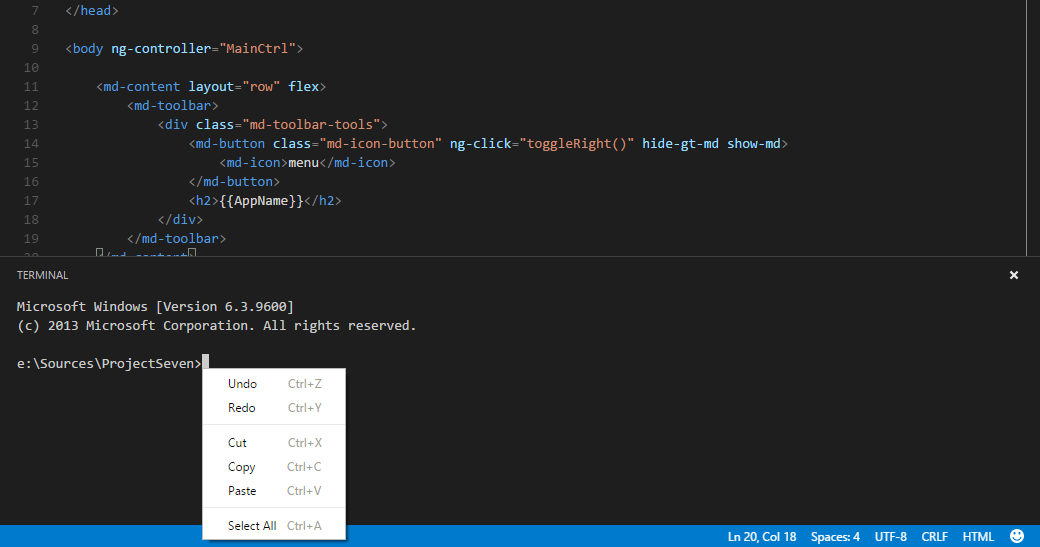
Right-Click mouse option is disabled in most of the parts in Terminal, except on the line with cursor in current command line.

So, we can view paste option by using right-click on line of cursor.

code.png

Better copy, paste coming soon in upcoming release.

Update 1: (v1.3)

Version 1.3 update released.

This paste feature is not available in v1.3.

Update 2: (Insiders)

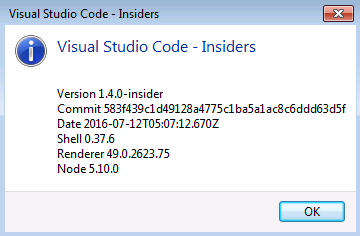
The copy/paste feature available now from the following VS code Insiders version.

paste terminal

Following Windows shortcuts can be used to copy/paste

ctrl+shift+c – to copy the text

ctrl+shift+v – to paste the text

still we can select the text using the mouse.

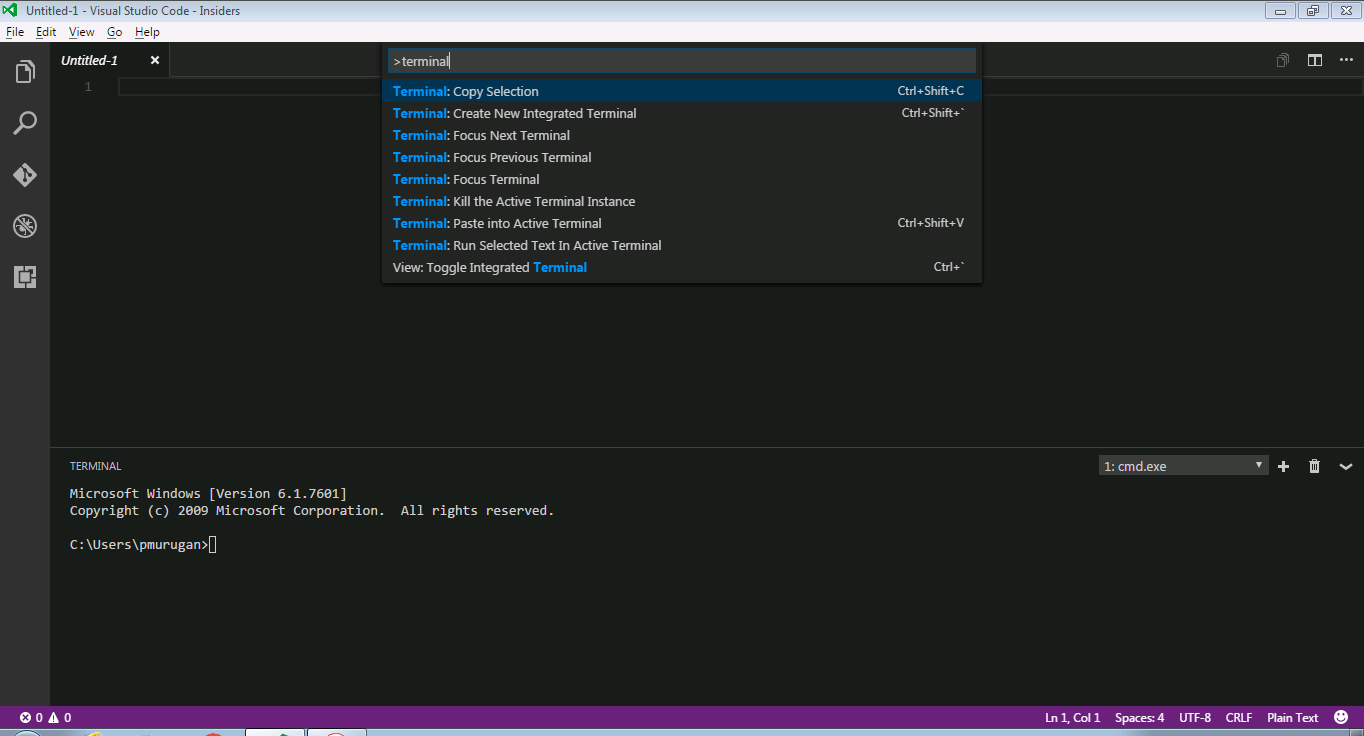
To explore various shortcuts about terminal, type ‘terminal’ in command palette as follows

terminal shortcuts

Update 3:

VS Code 1.4  released recently with copy paste features for Windows and Linux.

Happy Coding! 🙂