Getting Started with Visual Studio Code in Linux Mint

Introduction


Visual Studio Code (VS Code) is a powerful and popular code editor that provides a rich development environment. If you’re a Linux Mint user looking to enhance your coding experience, this blog post will guide you through the process of installing and setting up VS Code on your Linux Mint system. We’ll also explore some key features and tips to help you maximize productivity while using VS Code in Linux Mint.

Installing Visual Studio Code


To install VS Code on Linux Mint, you can follow these steps:

  • Open a terminal window.
  • Download the VS Code package for Linux from the official website (https://code.visualstudio.com/Download).
  • Once the download is complete, navigate to the Downloads directory in the terminal.
  • Run the following command to install VS Code:

sudo dpkg -i <package-name>.deb

  • Enter your password when prompted, and the installation process will begin.
  • After the installation is complete, you can launch VS Code either from the applications menu or by running the code command in the terminal.

Key Features of VS Code


VS Code offers a range of powerful features for Linux Mint users:

  • Integrated Terminal: VS Code comes with an integrated terminal that allows you to run commands and perform tasks without leaving the editor.
  • Extensibility: With a vast extension marketplace, you can enhance VS Code’s functionality by installing extensions for specific languages, frameworks, or development workflows.
  • IntelliSense: VS Code provides intelligent code completion, suggestions, and documentation, helping you write code faster and with fewer errors.
  • Version Control: Git integration is built-in, enabling seamless version control and collaboration with repositories.
  • Debugging: VS Code offers a comprehensive debugging experience, allowing you to set breakpoints, inspect variables, and step through code during the debugging process.

Customizing VS Code


Make VS Code your own by customizing its settings and preferences:

  • Themes: Choose from a variety of themes available in the VS Code marketplace or create your own custom theme to personalize the editor’s appearance.
  • Keyboard Shortcuts: Modify or create custom keyboard shortcuts to streamline your workflow and access frequently used commands more efficiently.
  • Workspace Settings: Adjust settings specific to your projects by creating workspace configurations that override the global settings.

Tips for Boosting Productivity


Here are some tips to enhance your productivity while using VS Code in Linux Mint:

  • Learn the Keyboard Shortcuts: Familiarize yourself with the essential keyboard shortcuts in VS Code to navigate, edit, and execute commands quickly.
  • Utilize Extensions: Explore the vast array of extensions available in the marketplace to tailor VS Code to your specific needs and improve your workflow.
  • Integrated Terminal: Take advantage of the integrated terminal to run commands, scripts, or build processes without switching to a separate terminal window.
  • Split Editor: Use the split editor feature to view and edit multiple files side by side, making it easier to compare code or work on different sections simultaneously.
  • Version Control: Take advantage of Git integration to track changes, commit code, and collaborate with others efficiently.

Conclusion


Visual Studio Code is a versatile and feature-rich code editor that can greatly enhance your coding experience on Linux Mint. By following the installation steps and exploring the various features, customization options, and productivity tips highlighted in this blog post, you can leverage the power of VS Code to streamline your development workflow and boost your productivity. Happy coding with VS Code on Linux Mint!
Getting Started: Building Your First Blog with Next.js and Markdown

Introduction

In this tutorial, we will walk through the process of building a blog using Next.js and Markdown. Next.js is a popular React framework that provides server-side rendering, automatic code splitting, and other powerful features. Markdown is a lightweight markup language used for creating formatted text documents. By combining Next.js and Markdown, we can create a fast and dynamic blog with a seamless writing experience. Let’s get started!

Prerequisites: Before we begin, make sure you have the following prerequisites:

  • Basic knowledge of React and Next.js
  • Node.js installed on your machine
  • Familiarity with HTML and CSS

Step 1: Setting Up a Next.js Project To get started, let’s create a new Next.js project. Open your terminal and run the following commands:

npx create-next-app my-blog
cd my-blog

Step 2: Installing Dependencies Next, let’s install the required dependencies for our blog. We need gray-matter to parse the Markdown files, and remark and remark-html to convert Markdown to HTML. Run the following command:

npm install gray-matter remark remark-html

Step 3: Creating Markdown Files In the root of your project, create a posts directory. Inside the posts directory, create a new Markdown file with the following content:

markdownCopy code---
title: My First Blog Post
date: 2023-06-01
---

# Welcome to My Blog!

This is my first blog post. Enjoy!

Step 4: Creating the Blog Page In the pages directory, create a new file called blog.js. In this file, let’s create a component that will fetch the Markdown files and render them as blog posts. Add the following code:

import fs from 'fs';
import path from 'path';
import matter from 'gray-matter';
import { remark } from 'remark';
import html from 'remark-html';

export default function Blog({ posts }) {
  return (
    <div>
      <h1>My Blog</h1>
      {posts.map((post) => (
        <div key={post.slug}>
          <h2>{post.frontmatter.title}</h2>
          <p>{post.frontmatter.date}</p>
          <div dangerouslySetInnerHTML={{ __html: post.content }} />
        </div>
      ))}
    </div>
  );
}

export async function getStaticProps() {
  const postsDirectory = path.join(process.cwd(), 'posts');
  const fileNames = fs.readdirSync(postsDirectory);

  const posts = await Promise.all(
    fileNames.map(async (fileName) => {
      const filePath = path.join(postsDirectory, fileName);
      const fileContent = fs.readFileSync(filePath, 'utf8');
      const { data, content } = matter(fileContent);

      const processedContent = await remark().use(html).process(content);
      const contentHtml = processedContent.toString();

      return {
        slug: fileName.replace(/\.md$/, ''),
        frontmatter: {
          ...data,
          date: data.date.toISOString(), // Convert date to string
        },
        content: contentHtml,
      };
    })
  );

  return {
    props: {
      posts,
    },
  };
}

Step 5: Styling the Blog Page Let’s add some basic styles to make our blog page look better. Create a new CSS file called blog.module.css in the styles directory and add the following code:

.container {
  max-width: 600px;
  margin: 0 auto;
  padding: 20px;
}

.post {
  margin-bottom: 20px;
}

.title {
  font-size: 24px;
  font-weight: bold;
}

.date {
  color: #888;
  font-size: 14px;
}

.content {
  margin-top: 10px;
}

Update the Blog component in blog.js to include the CSS classes:

import styles from '../styles/blog.module.css';

// ...

export default function Blog({ posts }) {
  return (
    <div className={styles.container}>
      <h1>My Blog</h1>
      {posts.map((post) => (
        <div key={post.slug} className={styles.post}>
          <h2 className={styles.title}>{post.frontmatter.title}</h2>
          <p className={styles.date}>{post.frontmatter.date}</p>
          <div
            className={styles.content}
            dangerouslySetInnerHTML={{ __html: post.content }}
          />
        </div>
      ))}
    </div>
  );
}

Step 6: Running the Application Finally, let’s run our Next.js application and see our blog in action. Run the following command:

npm run dev

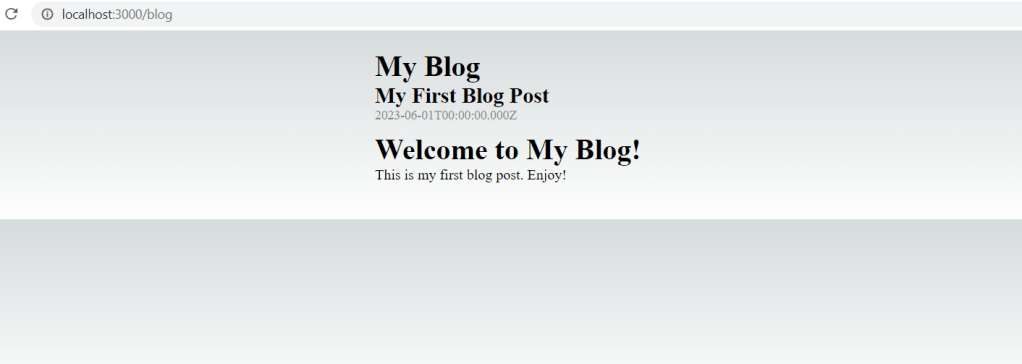
Visit http://localhost:3000/blog in your browser, and you should see your blog with the first post displayed.

Conclusion

In this tutorial, we learned how to build a blog using Next.js and Markdown. We covered the steps to set up a Next.js project, parse Markdown files, and render them as blog posts. We also added basic styling to enhance the appearance of our blog. With this foundation, you can expand the blog functionality by adding features like pagination, category filtering, and commenting. Happy blogging!

I hope this detailed tutorial helps you build a blog using Next.js and Markdown. Feel free to customize and extend the code to suit your specific needs.