Angular 9 Tutorial: Angular CLI

Angular CLI is one of the best tool available for angular to setup the initial files or scaffolding structure of the application.

Setup

Once you have setup the basic software like node.js and npm. You can download CLI using the following command

npm install -g @angular/cli

Once installed we can check the version of angular CLI using the following command

ng version

One common arguments every CLI has is help command. Here it is for you

ng help

Create new Angular App

From your target empty folder, you need to run the following command to generate the basic files/

ng new my-first-project

Make sure to replace ‘my-first-project’ with name you prefer. This is will your application name.

Angular CLI have lots of others option to help in setting the basic to advance files.

Available angular CLI commands

Available angular CLI commands By using command ng help, I’m getting the following information
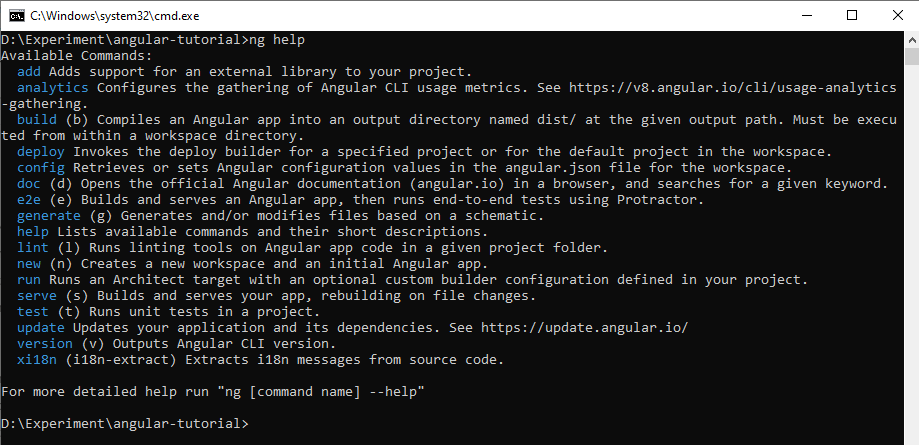
  • add – Adds support for an external library to your project.
  • analytics – Configures the gathering of Angular CLI usage metrics. See https://v8.angular.io/cli/usage-analytics-gathering.
  • build (b) – Compiles an Angular app into an output directory named dist/ at the given output path. Must be executed from within a workspace directory.
  • deploy – Invokes the deploy builder for a specified project or for the default project in the workspace.
  • config – Retrieves or sets Angular configuration values in the angular.json file for the workspace.
  • doc (d) – Opens the official Angular documentation (angular.io) in a browser, and searches for a given keyword.
  • e2e (e) – Builds and serves an Angular app, then runs end-to-end tests using Protractor.
  • generate (g) – Generates and/or modifies files based on a schematic.
  • help – Lists available commands and their short descriptions.
  • lint (l) – Runs linting tools on Angular app code in a given project folder.
  • new (n) – Creates a new workspace and an initial Angular app.
  • run – Runs an Architect target with an optional custom builder configuration defined in your project.
  • serve (s) – Builds and serves your app, rebuilding on file changes.
  • test (t) – Runs unit tests in a project.
  • update – Updates your application and its dependencies. See https://update.angular.io/
  • version (v) – Outputs Angular CLI version.
  • xi18n (i18n-extract) – Extracts i18n messages from source code.

Creating new angular project

ng new timer-project

timer-project is name of project we chose.

The CLI asks us choose our required options based on our needs. Like routing and stylesheet type.

After installing package, we are good to go with debugging of the newly generated application. We can discuss about the project structure in our upcoming post.

You can checkout some of our other posts related to angular CLI

Serving the project

Angular CLI provides a complete tool-chain for developing front-end apps on your local machine. As such, you don’t need to install a local server to serve your project — you can simply, use the ng serve command from your terminal to serve your project locally.

ng serve

The application will start serving in the root http://localhost:4200

Generating angular schematic

Generates and/or modifies files based on a schematic.

ng generate <schematic> [options]
ng g <schematic> [options]

schematic can be replaced with following sets

  • appShell
  • application
  • class
  • component
  • directive
  • enum
  • guard
  • interceptor
  • interface
  • library
  • module
  • pipe
  • service
  • serviceWorker
  • webWorker

These commands is fair to start using angular CLI in beginner mode.

Happy Coding!

Course Main Page

Angular 9 Tutorial for Beginners: Action Plan

How to outsmart peers in estimation - PERT

Most of us will do estimation as part of the job in building software.

Estimation is not just limited to the job, it’s happening in our life as well.

When your mom or spouse asks: when you’ll reach home — you’re mentioning a time based on looking into traffic on road; THAT’S THE ESTIMATE

Why does the estimation fail?

The estimation fails when there is a major difference between the actual time and estimated time.

Let’s say you are building a feature in the software.

You are estimating it to complete it in 5 days.

  • Estimate fails if it takes 10 days
  • At the same time, estimate fails if you complete in 2 days.

Why overestimate or underestimate?

An estimate should be realistic than an imaginary one.

We should hide behind overestimation or breaking the head with underestimation.

While estimating, one should consider all the internal and external factors to be considered in the part of the process.

What if I missed the deadline even after proper estimation?

Estimation is a skill that makes you feel perfect.

It like machine learning, you will keep on learning by doing multiple iterations.

But each iteration should bring the results better compared to the earlier one. 

How can I estimate better?

Yes, that’s the question we trying to discuss now.

Earlier, in one of the projects I have worked — we have experimented PERT principle to estimate our tasks.

PERT — Project Evaluation and Review Technique

I usually call it with another term – 3 point estimation, because it sounds cooler than the previous one.

Short story

PERT is an estimation technique that helps you calculate the estimate by considering the uncertainties that may happen in the tasks.

So one should bring a 3 estimation for one single task. Let’s see that in detail in the long story. 

Long story

For every task, one should prepare 3 estimates by considering all the risks and uncertainties that may occur.

And using a weighted average of that three numbers to come up with a final estimate.

Pessimistic (P) —  when everything goes wrong

Optimistic (O) — when everything goes right

Most likely (M) — common problems and difficulties — similar to life 🤔

Mostly these estimated are measured in hours or days(6 hours a day). So one should prepare 3 estimates for all the above-mentioned cases.

The program (or project) evaluation and review technique (PERT) is a statistical tool used in project management, which was designed to analyze and represent the tasks involved in completing a given project.

Wikipedia says

Process of estimation

Let’s say, I’m working on the task to build a console application to do some operations.

Now I need to go through the requirements and check the technical impediments in it and decide the workflow. And the come up with these 3 estimates like

If everything goes wrong; Pessimistic — I will complete the task in 8 hours

If everything goes right; Optimistic — I will complete the task in 3 hours

If I have some real problem; Most likely— I will complete the task in 5 hours

That’s it. They can start and continue their work in full swing.

From a project management view

I manage this project and I got three estimates for one single task.

Which one I should track now?

And how can I estimate the overall timeline of the project?

The answer is — we have formula now 🤣

Don’t scare! I do scare when I learned it first. But it’s straight forward, nothing to do with algebra or integral calculus.

The resulting PERT estimate is calculated as 

(O + 4M + P)/6

This is called a “weighted average” since the most likely estimate is weighted four times as much as the other two values. You’ll notice that the final PERT estimate is moved slightly toward either the optimistic or pessimistic value – depending on which one is furthest from the most likely.

Estimation is a skill that makes you feel perfect.

It like machine learning, you will keep on learning by doing multiple iterations.

But each iteration should bring the results better compared to the earlier one.

Try out and leave your feedback in comment section. 

Credits:

Photo by Kelly Sikkema on Unsplash